'/%3e%3clinearGradient%20xlink:href='%23a'%20id='b'%20x1='46.31'%20x2='68.33'%20y1='44.32'%20y2='66.34'%20gradientTransform='translate(-27.79%20-23.492)'%20gradientUnits='userSpaceOnUse'/%3e%3c/defs%3e%3cpath%20fill='url(%23b)'%20d='M56.36%2028.438c-3.08-17.5-7.7-25.81-17.56-27.9l-16.48%2016.49h8.7c4.92%200%208.9%203.99%208.9%208.9v18.98l-20.94%2020.95c4.16.88%209.26.65%2015.58-.47%2021.26-3.75%2026.14-12.22%2021.78-36.96z'/%3e%3cpath%20fill='url(%23c)'%20d='M35.48%2049.368h-8.7c-4.92%200-8.9-3.99-8.9-8.9v-18.98L38.82.538c-4.16-.88-9.26-.65-15.58.47C1.98%204.758-2.9%2013.228%201.46%2037.968c3.08%2017.5%207.7%2025.81%2017.56%2027.9l16.48-16.49z'/%3e%3c/svg%3e)
Breakpoints & Grid
Responsive layout grids and breakpoints that adapt fluidly across devices and screen sizes.
Column grids are used to organize layouts, components, and content into structured hierarchies. This structure ensures consistent alignment and distribution across all views. Built on responsive breakpoints, the grid adapts smoothly from mobile screens to ultrawide monitors.
Explore the Grid
Visit our interactive Grid Playground(opens in a new tab) to see the grid system in action.
Copy link to headline:Grid
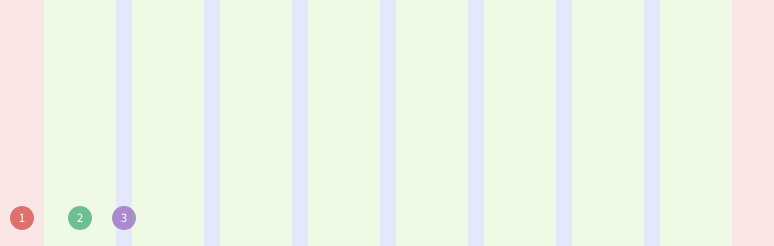
The grid system consists of three core building blocks:
- Columns
Available width is divided into up to 12 columns. Elements define how many columns they span, and overflowing elements wrap to the next row.
Maximum columns adapt dynamically based on the active breakpoint. See breakpoints below for details.
- Gutters / Gaps
Elements within the grid are separated by predefined gutter spacing.
- Margins
Unified outer margins provide dynamic padding around grid containers, keeping content properly indented from viewport edges.
Copy link to headline:Usage
Add the onyx-grid CSS class to create a grid container. Use column-span classes on child elements to control sizing:
- Specific number of columns
Use
onyx-grid-span-<number>to span a fixed number of columns: - Full width
Use
onyx-grid-span-fullto span all available columns across any breakpoint: - Specific breakpoints
To adjust column span at specific breakpoints, use
onyx-grid-<breakpoint>-span-<number>. The element will span<number>of columns for that<breakpoint>and larger.Combine breakpoint-specific classes with a base
onyx-grid-span-<number>class: - Custom container
The grid system is built on CSS container queries(opens in a new tab). Each grid evaluates breakpoints relative to its nearest container ancestor.
OnyxPageLayout, OnyxAppLayout, and OnyxSidebar set up container queries automatically.
To create a custom container, set the container-type(opens in a new tab) CSS property. This is useful when nesting grids inside OnyxModal or custom widgets:
Copy link to headline:Grid margin
Outer grid margins are applied automatically by OnyxPageLayout. To apply them manually, use the .onyx-grid-layout utility class:
Copy link to headline:Customization
Customize grid behavior by setting utility classes on the root application element:
- Max width
By default, the grid expands across the full viewport width. To preserve readability on wide displays (e.g. 1440px or 1920px+), limit content width using max-width utility classes. Components like OnyxNavBar and OnyxBottomBar adapt automatically.
Apply one of the following classes:
noneMax. widthnoneCSS classnone (default)mdMax. width1440pxCSS classonyx-grid-max-mdlgMax. width1920pxCSS classonyx-grid-max-lg - Alignment
When a max-width class is set, align the grid container to the left or center:
leftAlignmentleftCSS classnone (default)centerAlignmentcenterCSS classonyx-grid-center - Max columns
The grid defaults to 12 columns. On wide displays (breakpoint
lgand above), you can expand the column count to 16 or 20:12Max. columns12CSS classnone (default)16Max. columns16CSS classonyx-grid-lg-1620Max. columns20CSS classonyx-grid-xl-20
Copy link to headline:Breakpoints
Breakpoints define width thresholds where page or component layouts refactor for smaller or larger screens:
The minimum supported viewport width is 320px. Screens narrower than 320px are not officially supported.
Copy link to headline:Usage
In custom layouts or components, use SCSS mixins to query screen or container widths:
- Media queries
To apply styles based on the viewport width, use the
breakpoints.screen()SCSS mixin: - Container queries
To apply styles based on the parent element width, use the
breakpoints.container()SCSS mixin. Ensure the element hascontainer-typedefined.When defining both min and max for the same breakpoint, include an offset parameter:
- Usage in code
To access breakpoint values in TypeScript or JavaScript, import
ONYX_BREAKPOINTS: